Learn the Linux command line by doing: from ls to triaging a log in one line
Every infrastructure job assumes you can use a Linux shell, but almost nobody teaches you to. Here's how OpsPath gets you fluent: real commands in a real shell, in your browser, with every step checked.
The OpsPath team
8 min readlinuxcommand-linecareer
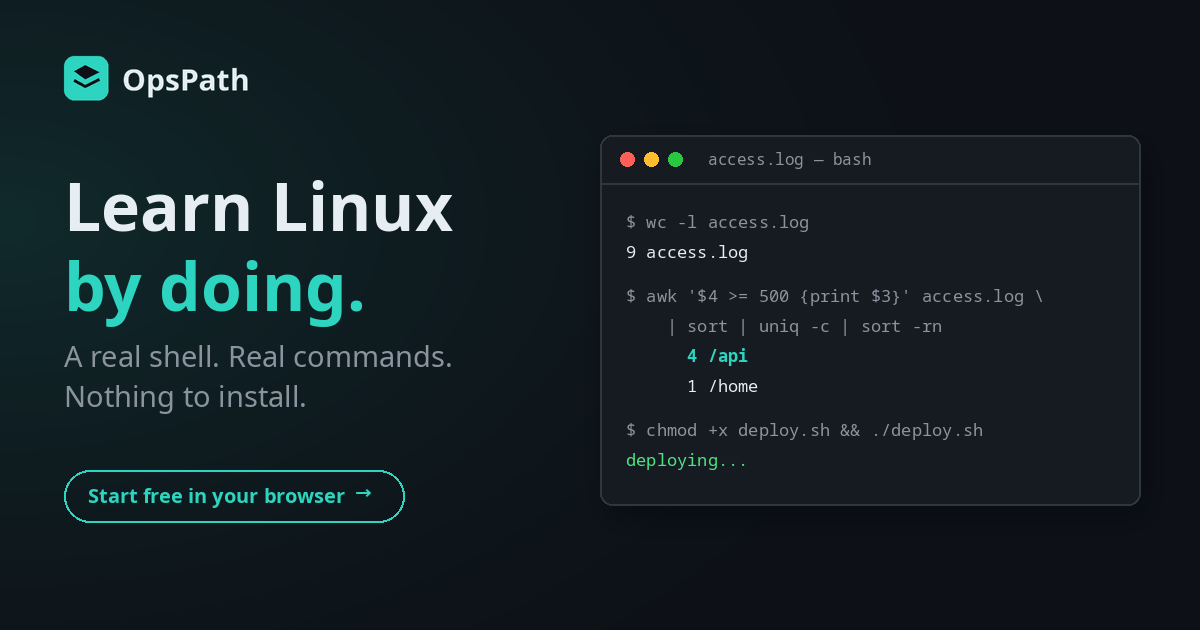
There's one skill almost every platform, cloud and DevOps role takes for granted: the Linux command line.
It almost never shows up as a line in a job ad. It's just there underneath everything else. Terraform runs in a terminal. CI pipelines are shell commands. Containers are Linux. When a service falls over at 2am, nobody opens a dashboard builder. They SSH into a box and work out what's wrong with grep, awk and a pipe.
That makes the command line the skill people most often skip, and the one that shows first in an interview, on a pairing call, or on your first on-call shift.
Why the command line is hard to pick up
The usual routes all leave a gap.
Cheat sheets and videos give you the commands without the reflexes. You can recognise chmod 755 on a slide and still freeze when a script says Permission denied, because you've never had to fix one yourself.
Your own laptop or a VM is a perfectly good place to practise, if you know what to practise. With a blank prompt and no brief, most people type ls, cd and mkdir for a while and stop. Nothing hands you a messy log file and asks a real question about it.
Learning on the job works eventually. It also means learning find versus grep -r while a teammate waits, and that's not a great time to be reading the manual for the first time.
What's missing is structure: small, real tasks in a real shell that build on each other, with something that tells you when you've actually got it right.
How OpsPath teaches Linux
Every lesson on the Linux & the Command Line track is hands-on. You type commands into a real terminal in your browser and press Enter. They execute in a real Bash shell on Debian Linux, using the real GNU tools (grep, sed, awk, find and the rest), and you read the actual output.
Each lesson ships its own small set of files to work on: a web server access log, a CSV of users, a config file, a script missing its execute bit. Lessons are split into short steps, each on its own page: a few paragraphs on the idea, then a task. Each step is checked automatically against what your command did and printed, so you know you've done it, not just read about it. A few steps check your understanding instead, with a couple of multiple-choice questions that explain why each answer is right or wrong.
The checks test the result, not one model answer. In the capstone, any pipeline that lands on the right answer passes, whether you count with sort | uniq -c or with an awk counter.
There's nothing to install. Every run happens in an isolated, throwaway sandbox with no network access, as an unprivileged user, and it's destroyed afterwards. You can rm something by accident and lose nothing but a click.
What's in the track
Seventeen lessons in seven modules, from your first ls to building an analysis pipeline from a written brief. The first three lessons are free with an account.
| Lesson | What you actually do |
|---|---|
| Navigate the Filesystem (free) | List a directory, reveal the hidden .env.local with ls -a, read a file with cat |
| Pipes & Filters (free) | Count requests in an access log with wc -l, filter the failures with grep, then pipe one into the other |
| Reading the Manual (free) | Open a man page, grep it for the flag you forgot, find a command by what it does with apropos, and learn what the (1) in ls (1) means |
| Redirection & Streams | Split a deploy's stdout from its stderr, capture both with 2>&1 (and learn why the order matters), keep a log with tee, and diff two sorted lists without temp files |
| Files, Links & Inodes | Back up a config safely, meet the inode with stat, break a symlink by deleting its target, and repoint a current release symlink the way deploy tools do |
| Searching Files & Trees | Find every *.py file in a project with find, then hunt down leftover TODOs with a recursive grep |
| Permissions & Ownership | Read an ls -l mode string, fix a script that won't run with chmod +x, and explain octal modes like 755 |
| Text Processing with sed & awk | Rewrite a config value with sed, pull a column out of a CSV with awk, and total a column with an END block |
| Cut, Uniq & tr | Slice a column with cut, count each value with sort | uniq -c, and transform text with tr |
| Turning Output into Arguments with xargs | Turn a list into arguments, run a command once per item, and use the NUL-safe find -print0 | xargs -0 |
| Archives & Compression | Bundle an app with tar, list before extracting, restore one file with -C, leave logs out with --exclude, and make a dated, checksummed backup |
| fstab & Mounts | Read the six fields of /etc/fstab, add a new disk by UUID with nofail, and find and fix a broken line with findmnt --verify before it stops a server booting |
| Disk & System Health | Find what's filling the disk with df, du and find, spot why free lies inside a container, and print a one-line health report |
| Processes & top | Read top's summary, catch a runaway CPU hog and a memory hog, stop one with a signal, and renice another instead of killing it |
| Reading Logs | Cut a log down to the problem: tail it, filter by severity and time window, count an SSH brute force by IP in auth.log, search rotated .gz logs, and follow a live one |
| Environment Variables & PATH | See export decide what child processes inherit, install your own tool into ~/bin, and learn why scripts use functions, not aliases |
| Capstone: Triage a Log | Answer "which endpoint is failing the most?" with a single pipeline you build yourself |
The capstone: a real question, one line
The track ends the way a lot of real incidents start. You get an access log and a question: which endpoint is throwing the most server errors? No step-by-step instructions this time, just the brief.
The answer is the classic shape you'll have built up to across the track: filter, extract, count, rank.
awk '$4 >= 500 {print $3}' access.log | sort | uniq -c | sort -rn | head -1
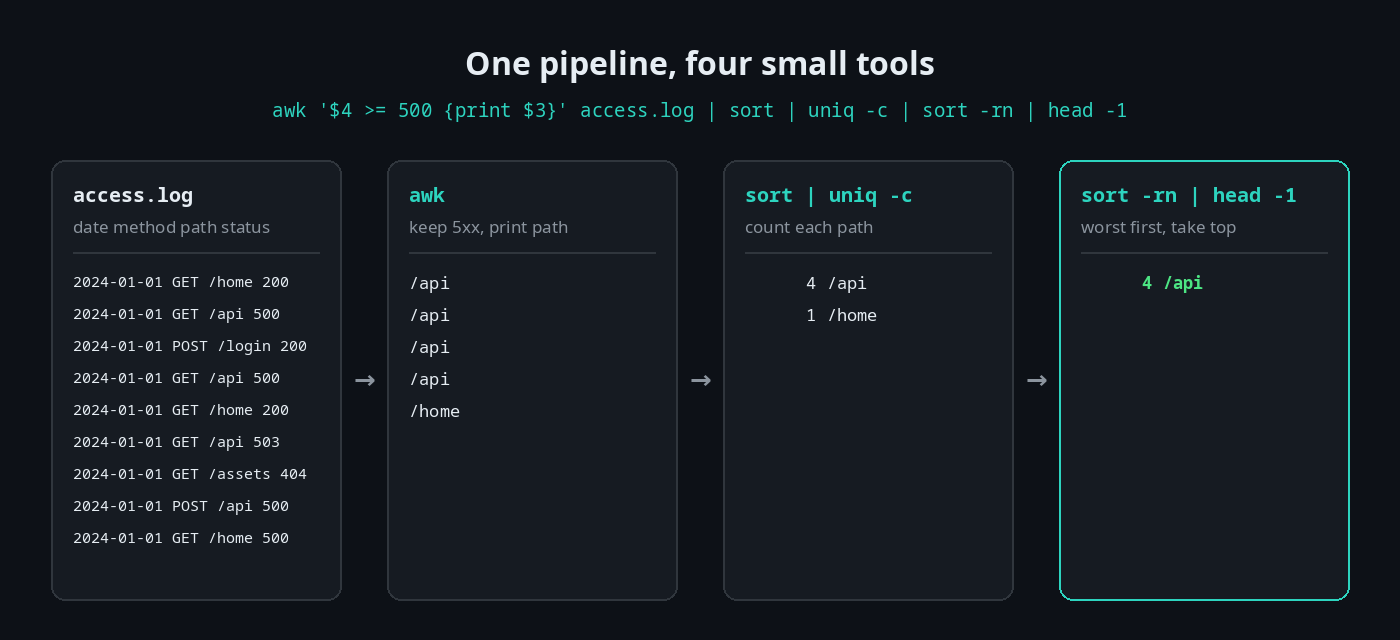
None of the commands is new by this point. The skill is composing them on the spot, and that's exactly what an incident, or an interviewer, will ask of you.
Built for getting hired
Interview questions in every lesson. Every lesson includes interview-prep questions on its topic, the kind interviewers actually ask, with worked answers. After the permissions lesson, for example:
"A teammate says
./deploy.shgives 'Permission denied' but the file is clearly there. What's wrong?"
You'll have just fixed that exact problem, so you can answer from experience rather than from memory. Others cover find versus grep -r, why you sort before uniq, when to reach for awk over grep, and why -print0 | xargs -0 is the safe way to pipe file lists.
Résumé bullets you've earned. Finishing a lesson adds a ready-to-copy résumé line to your profile. It describes what you actually did, for example: "Composed Unix pipelines (grep, wc, sort) to filter and summarize log data from the command line."
A certificate when you finish. Complete every lesson in the track and you can claim a certificate of completion, with a public verification page and an Add to LinkedIn button.
How it compares
| Videos & cheat sheets | Your own laptop or VM | OpsPath | |
|---|---|---|---|
| Run real commands | ❌ You watch | ✅ | ✅ Every lesson |
| Setup before you start | None | Install or configure a Linux environment | None, it's in your browser |
| Realistic files and tasks to work on | ❌ | ❌ Bring your own | ✅ Shipped with each lesson |
| Know you've actually done it | ❌ | ❌ | ✅ Every step is checked |
| Interview prep | Sometimes | ❌ | ✅ In every lesson |
A local Linux box is still a great thing to have. Keep using it! OpsPath gives you the curriculum, the practice data and the feedback to make that time count.
Where it leads
Linux is the first track on OpsPath's roadmap to a first platform or infrastructure role, and everything after it builds on it:
- Bash & Shell Scripting turns the commands you've learned into scripts with variables, conditionals, loops, functions and proper error handling.
- Git, Python and Cloud (AWS) run on the same sandboxed shell, so the habits carry straight over.
- Terraform is where it pays off. Every
planandapplyyou'll ever run happens in a terminal.
Who this is for
- Career changers and graduates heading for a first cloud, DevOps or platform role, who want the fundamentals every later step assumes.
- Developers who live in an IDE and want to stop copy-pasting shell commands they don't understand.
- Anyone who freezes at a blank prompt and wants to turn that into fluency, one small win at a time.
You don't need any Linux experience to start, and you don't need to install anything.
Start in the next five minutes
Create a free account and open Navigate the Filesystem. It's your first three commands in a real shell, and it's free, as are the next two lessons, Pipes & Filters and Reading the Manual. See whether learning by doing clicks for you, then upgrade to Pro when you want the rest of the track.