SSH tunnels explained: -L, -R and -D, with real examples
Local, remote and dynamic SSH port forwarding in plain English: which side listens, where the traffic goes, the flags that make tunnels reliable, and when to use each one.
The OpsPath team
4 min readsecuritysshnetworkinglinux
Sooner or later you need to reach something you can't reach. A database that only accepts connections from inside the VPC. An admin dashboard on a private subnet. Or the reverse: a remote machine needs to see the dev server running on your laptop.
If you can SSH to a machine that can reach it, you already have everything you need. SSH is an encrypted, authenticated pipe, and it can carry other traffic as well as your shell. That's port forwarding, and it comes in three directions.
Every output below was captured in the OpsPath sandbox. app is a real OpenSSH server, and the "internal dashboard" lives at 127.0.0.2:8080, an address we treat as reachable only from app.
The one-line mental model
For each flag, ask two questions: which side opens the listening port, and who makes the final connection.
-L  local:   you ──[listen 9000]══ssh══▶ app ──▶ 127.0.0.2:8080
-R  remote:  app ──[listen 9100]══ssh══▶ you ──▶ 127.0.0.1:8081
-D  dynamic: you ──[SOCKS 1080]══ssh══▶ app ──▶ any host, chosen per connection
-L: reach what the server can reach
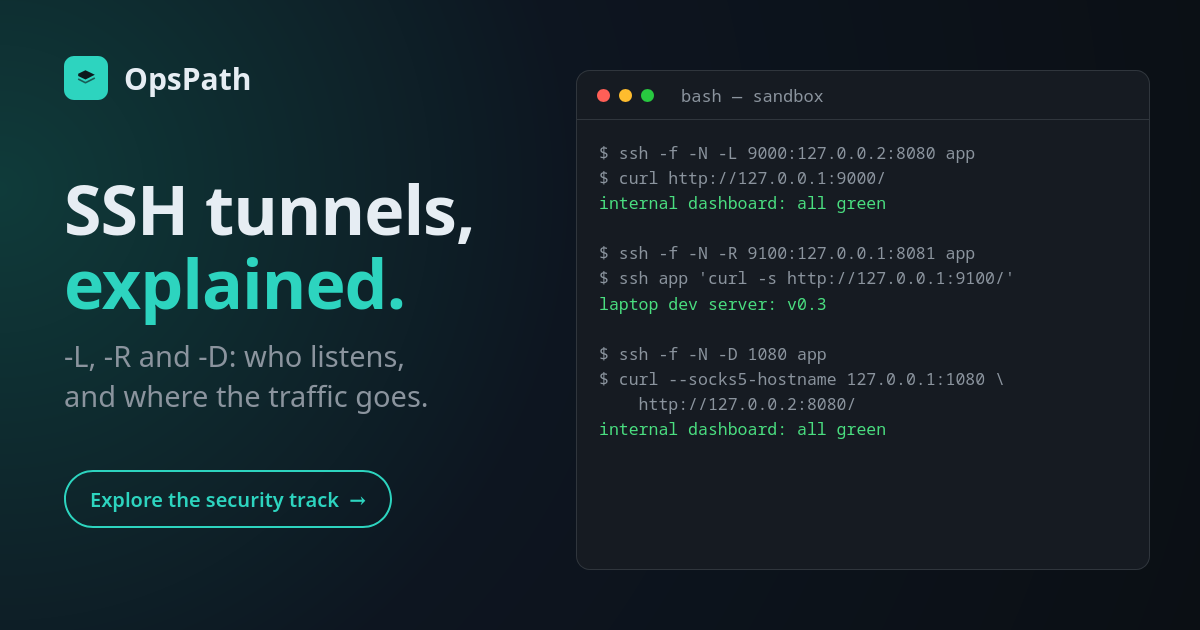
$ ssh -f -N -L 9000:127.0.0.2:8080 app
$ curl http://127.0.0.1:9000/
internal dashboard: all green
-L 9000:127.0.0.2:8080 means: listen on my port 9000, and for each connection, have the server connect to 127.0.0.2:8080. The target address is resolved from the server's point of view. localhost in a -L target means the server itself, not your laptop.
This is the everyday one. Typical uses:
ssh -L 5432:db.internal:5432 bastion, then pointpsqlatlocalhost:5432.ssh -L 8443:grafana.internal:443 bastionfor an internal dashboard.- Anything you'd otherwise open a firewall rule for "just for a minute".
-R: expose what you have to the server
$ ssh -f -N -R 9100:127.0.0.1:8081 app
$ ssh app 'curl -s http://127.0.0.1:9100/'
laptop dev server: v0.3
-R 9100:127.0.0.1:8081 is the mirror image: listen on the server's port 9100, and carry each connection back to 127.0.0.1:8081 on your side. Notice that the curl ran on app and got an answer from the laptop.
Uses: showing a remote machine (or a colleague on it) your local dev server, letting a server reach a service on your network, and the trick behind "expose localhost to the internet" tools. By default the remote port binds only to the server's loopback. Making it public needs GatewayPorts on the server, which is usually a bad idea.
-D: a SOCKS proxy through the server
$ ssh -f -N -D 1080 app
$ curl --socks5-hostname 127.0.0.1:1080 http://127.0.0.2:8080/
internal dashboard: all green
-D 1080 turns ssh into a SOCKS5 proxy on your port 1080. Instead of one fixed destination, each client connection says where it wants to go, and the server makes that connection. Point a browser or curl --socks5-hostname at it and you can browse the server's network as if you were on it. The -hostname variant sends DNS lookups through the proxy too, so internal names resolve.
Flags that make tunnels reliable
-N: don't run a remote command, just forward. Without it you also get a shell you didn't want.-f: go to the background after authenticating.-o ExitOnForwardFailure=yes: if the port is already taken, fail. Without it, ssh connects happily without the tunnel and you debug the wrong thing.-o ServerAliveInterval=30: notice and drop dead connections, which pairs well with a supervisor (orautossh) that restarts the tunnel.~/.ssh/config:LocalForward 9000 127.0.0.2:8080,RemoteForwardandDynamicForwardsave typing for tunnels you open every day.
When a tunnel doesn't work
- "bind: Address already in use": something already listens on that local port. Pick another, or find it with
lsof -i :9000. - Connects, then nothing: the server can't reach the target. Test from the server:
ssh app 'curl -sv http://127.0.0.2:8080/'. - "administratively prohibited: open failed": the server forbids forwarding (
AllowTcpForwarding no). That's a policy decision, not a bug. - Forwarding silently disabled: ssh turns off forwarding after a host-key mismatch warning, to protect you from a man-in-the-middle. Fix the host key properly.
Why security teams restrict tunnels
Tunnels go straight through firewalls and network segmentation. That's exactly what makes them useful, and exactly what makes them dangerous in the wrong hands. An attacker with any SSH foothold can use -D to pivot through your network. Hardened servers often set AllowTcpForwarding no and allow it only for specific users, or use restrict on automation keys in authorized_keys. Cloud-native alternatives like AWS SSM port forwarding or identity-aware proxies give you the same convenience with central policy and audit.
Learn it hands-on
The SSH module of the Security Essentials: JWT, TLS & SSH track runs all of this against real OpenSSH servers in your browser:
- keys,
known_hostsand a simulated man-in-the-middle ~/.ssh/config, the agent andProxyJumpthrough a bastion- these three tunnels, plus
scp,sftpand ControlMaster - hardening
sshd, forced-command keys, and SSH user and host certificates
The track starts free with encoding, hashing, HMAC and encryption and anatomy of a JWT.