Terraform state explained: drift, a deleted state file, and getting it back with import
What Terraform state actually is, what's inside terraform.tfstate, and what plan shows when someone changes infrastructure by hand, when the state file is lost, and when two applies run at once, with the fix for each.
The OpsPath team
8 min readterraforminfrastructure-as-codestate
Most Terraform problems that feel mysterious are state problems. A plan that wants to recreate something you never touched. An apply that fails because a bucket "already exists". A change someone made in the console that Terraform quietly reverts.
They all come from the same place: Terraform's state, the file most people never open. This post explains what state is, what's inside it, and the three ways it goes wrong in real life, with the output you'll actually see and the fix for each.
What state is
Your code says what you want. The cloud has what exists. State is Terraform's memory of which real object belongs to which block in your code.
resource "aws_s3_bucket" "logs" {
  bucket = "acme-logs"
}
After an apply, state records that the address aws_s3_bucket.logs is the real bucket acme-logs, along with every attribute Terraform knows about it. Without that mapping, Terraform has no way to tell "this bucket is mine" from "this bucket happens to have the same name".
So every Terraform run involves three worlds:
| World | What it is | Where it lives |
|---|---|---|
| Code | what you declared | your .tf files |
| State | what Terraform thinks exists | terraform.tfstate, locally or in a remote backend |
| Real infrastructure | what actually exists | the cloud |
terraform plan works by refreshing state from the real world, then comparing the result with your code. Almost every state problem is two of those worlds disagreeing.
What's inside terraform.tfstate
It's JSON. Here's the start of a real one, from applying a single resource with Terraform 1.16:
{
  "version": 4,
  "terraform_version": "1.16.4",
  "serial": 1,
  "lineage": "88919cd4-c2cb-ed97-2fce-5b8aa4365293",
  "outputs": {},
  "resources": [
    {
      "mode": "managed",
      "type": "local_file",
      "name": "motd",
      "provider": "provider[\"registry.terraform.io/hashicorp/local\"]",
      "instances": [
        {
          "schema_version": 0,
          "attributes": {
            "content": "Welcome to web-1\n",
            "filename": "./motd.txt",
            "id": "b80ddd72df3575ed9278a481178ccb555789a25e",
            ...
The parts that matter:
resources: one entry per resource in your code, keyed bytypeandname(together, the addresslocal_file.motd), with the real object'sidand attributes.serial: goes up on every write. Terraform uses it to spot a stale copy.lineage: a unique ID for this state's history, so one project's state can't be mistaken for another's.
Two things follow from this.
State holds secrets in plain text. If a resource has a password or a private key as an attribute, it's in the file. Treat state like a credentials file: encrypted at rest, tightly restricted, never committed to Git.
You rarely need to read the JSON. Terraform has commands for it:
terraform state list                     # every address Terraform manages
terraform state show local_file.motd     # one resource's attributes
$ terraform state list
local_file.motd
Problem 1: drift
Drift is the real world changing without Terraform. Someone resizes a server in the console during an incident, a script adds a tag, an autoscaler changes a setting. Terraform didn't do it, so state doesn't know.
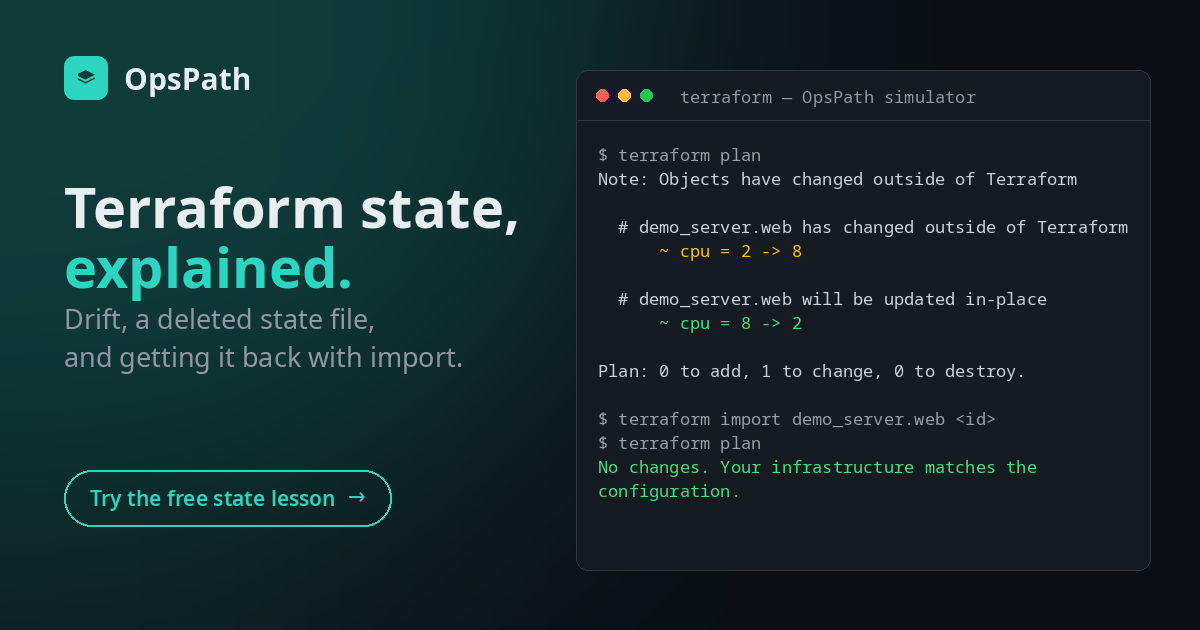
The next plan finds it, because it refreshes before it compares. Here a server's CPU was changed from 2 to 8 in the console. (This plan and the next one come from the OpsPath Terraform simulator, which prints Terraform's plan format for a small demo stack: a network and a server.)
$ terraform plan
Note: Objects have changed outside of Terraform

  # demo_server.web has changed outside of Terraform
      ~ cpu = 2 -> 8

Terraform will perform the following actions:

  # demo_server.web will be updated in-place
  ~ resource "demo_server" "web" {
      ~ cpu = 8 -> 2
    }

Plan: 0 to add, 1 to change, 0 to destroy.
Read it in two halves. The note is what changed in the real world (2 -> 8). The plan is what Terraform will do about it: put things back the way your code says (8 -> 2).
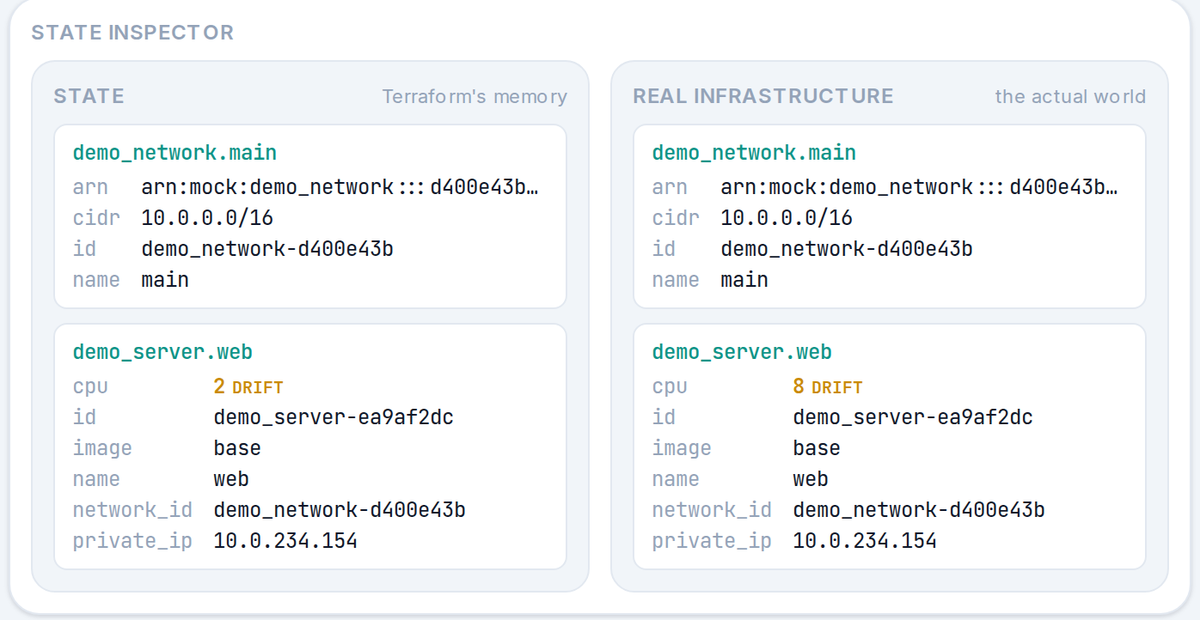
That revert is usually right, but not always. If the console change was a deliberate fix during an incident, applying the plan undoes it. So you have three choices:
- Revert it:
terraform apply, and the code wins. - Keep it: change the code to
cpu = 8, and the next plan shows no changes. - Accept it into state without changing the code yet:
terraform apply -refresh-onlyupdates state to match reality and changes nothing in the cloud. The next normal plan will still want to revert it until the code matches.
Whatever you choose, the lesson is the same: changes made outside Terraform don't stay hidden, they turn up in the next plan, and someone has to decide what wins.
Problem 2: the state file is gone
Delete the state file and the real resources don't go anywhere. Only Terraform's memory of them does. From Terraform's point of view, nothing exists:
$ terraform plan
Terraform will perform the following actions:

  # demo_network.main will be created
  + resource "demo_network" "main" {
      + name = "main"
      + cidr = "10.0.0.0/16"
      + id   = (known after apply)
      + arn  = (known after apply)
    }

  # demo_server.web will be created
  + resource "demo_server" "web" {
      + name       = "web"
      + image      = "base"
      + cpu        = 2
      + network_id = (known after apply)
      + id         = (known after apply)
      + private_ip = (known after apply)
    }

Plan: 2 to add, 0 to change, 0 to destroy.
Don't apply this. You'd get a second network and a second server next to the originals: duplicates you pay for, while the originals carry on unmanaged. Where names must be unique (S3 buckets, IAM roles), the apply fails halfway instead, which is arguably worse.
State gets lost in boring ways: a laptop dies, someone tidies up a directory, or terraform.tfstate was in .gitignore and the only copy was local.
The fix: import
The resources still exist, so the fix is to restore Terraform's memory, not to build anything. Import takes an address in your code and the ID of a real object, and records the mapping in state without touching the object:
terraform import aws_s3_bucket.logs acme-logs
Since Terraform 1.5 you can also write it as an import block, which goes through plan and code review like any other change:
import {
  to = aws_s3_bucket.logs
  id = "acme-logs"
}
Import every resource back, then plan:
$ terraform plan
No changes. Your infrastructure matches the configuration.
"No changes" after an import is the proof you got it right: every address points at the right object, and the code already matches what exists. If the plan still wants to change something, the code and the real resource differ, and you decide which one is right before applying.
The same import block is how you adopt resources that were created by hand in the first place ("ClickOps"). terraform plan -generate-config-out=generated.tf will even write a first draft of the code for you.
Problem 3: two applies at once
Local state works for one person. Now imagine two engineers, or an engineer and a CI job, running apply against the same state at the same moment. Each reads the state, changes the world, and writes its own version back. The second write overwrites the first, and state no longer matches reality. Both runs think they succeeded, and the next plan is fiction.
The fix is two features used together:
- Remote state: one shared copy in a backend (an S3 bucket, HCP Terraform, Azure Storage, GCS) instead of a file on each laptop. Turn on versioning for the bucket, so a bad write can be rolled back.
- State locking: a run takes a lock before it reads state and holds it until it writes. A second run waits, or fails with a "state locked" error, instead of corrupting anything.
terraform {
  backend "s3" {
    bucket         = "acme-tf-state"
    key            = "prod/app.tfstate"
    region         = "eu-west-1"
    encrypt        = true
    use_lockfile   = true    # Terraform 1.10+: lock with the bucket itself
    # dynamodb_table = "tf-locks"   # the older way, still widely used
  }
}
If you see a lock error, check whether another run really is in progress before reaching for terraform force-unlock. Breaking a lock that someone is actively holding is how you get the corrupted state you were trying to avoid.
The rules, in one place
- Never hand-edit state. Use
terraform state mvor amovedblock to rename,terraform state rmor aremovedblock to stop managing something, andimportto adopt. - Never let two runs share an unlocked state. Remote state with locking from the first day anyone else touches the project.
- Treat state as a secret. Encrypt it, restrict who can read it, and keep it out of Git.
- Read the plan, especially the note at the top. "Objects have changed outside of Terraform" is drift, and drift needs a decision, not an automatic apply.
Break it yourself, safely
Reading about state is useful. Breaking it is how it sticks.
The free State: Break It & Recover lesson on OpsPath gives you a small stack and buttons that do exactly what the rules above say never to do: edit a server in the "console", delete the state file, and run two applies at once. You watch each one in the State Inspector (the screenshot above is from it), see what plan reports, and recover with import. It runs on a Terraform simulator in your browser, so there's no cloud account and no bill. Running the steps only needs a free account.
It's part of the free Terraform Foundations course: seven lessons, from the mental model to building a stack from a brief. Remote state and locking come next, in the Pro production course, with the real terraform binary and its S3 backend against a sandboxed AWS.