Learn Bash scripting by doing: from your first variable to a script you'd trust in CI
Most Bash gets copied, pasted and hoped over. Here's how OpsPath teaches you to write scripts you understand: real Bash, run in your browser, with every step checked and the exit code in front of you.
The OpsPath team
8 min readbashscriptingcareer
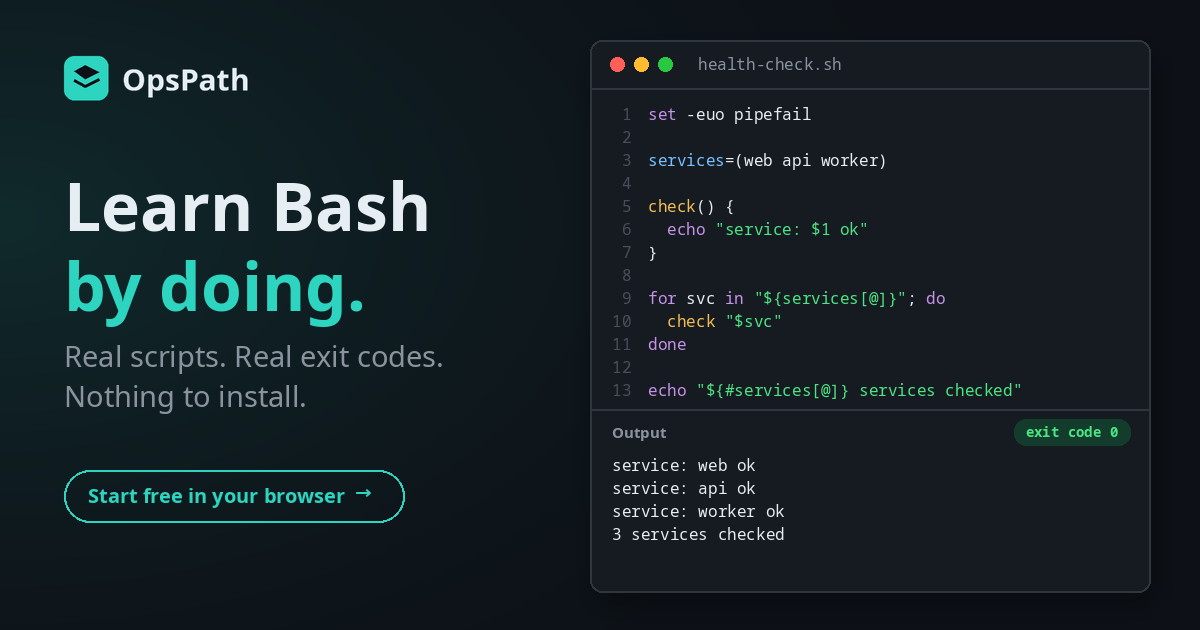
Somewhere in every infrastructure team there's a Bash script nobody wants to touch. It deploys something, or rotates something, or cleans something up. It was copied from a Stack Overflow answer years ago, it mostly works, and when it doesn't, it fails silently and carries on.
Bash is everywhere in this work. CI jobs are shell steps. Container entrypoints are shell scripts. Half of "automate this" tickets end in a .sh file. Yet very few people sit down and actually learn it. They pick up fragments, paste the rest, and hope.
That's the gap the Bash & Shell Scripting track on OpsPath is built to close: from your first variable to a script you'd be happy to see running in a pipeline.
Why Bash is hard to learn properly
Bash is unusually easy to get almost right.
It doesn't complain. Misspell a variable and Bash quietly substitutes an empty string. A command fails halfway through and the next line runs anyway. A pipeline's first stage breaks and the pipeline still reports success. Nothing tells you you've made a mistake, so you never learn that you did.
Copy-paste hides the rules. Why "$@" and not $*? Why do double quotes expand $name but single quotes don't? Why does uniq need sort first? A pasted snippet works until the one input it wasn't written for, and then you're debugging syntax you never understood.
Tutorials stop at syntax. Loops and if statements are the easy part. Exit codes, strict mode, argument parsing and cleanup on exit are what separate a script that works on your laptop from one you can trust unattended, and they're the parts most tutorials skip.
How OpsPath teaches Bash
Every lesson is hands-on. You write a script in an editor in your browser and press Run. It executes with real Bash on Debian Linux, and you see everything a real run gives you: standard output, standard error, any files your script wrote and, front and centre, the exit code.
That exit code matters more than it looks. It's how CI decides whether your build passed, and it's how you can tell a script that printed the right thing from one that actually succeeded. You'll learn to read it before you learn to ignore it.
Lessons are broken into steps, and each step is checked automatically: what your script printed, the files it created, the exit status, and where it matters, that you used the technique the step is teaching. Beyond that, the checks accept any correct script, not one model answer. printf is as good as echo, and in the capstone a while loop is as good as a for.
There's nothing to install, and nothing you write can do damage. Every run happens in an isolated, throwaway sandbox with no network access, as an unprivileged user, and it's destroyed afterwards.
What's in the track
Seventeen lessons in seven modules. The first three are free with an account.
| Lesson | What you actually do |
|---|---|
| Variables & Output (free) | Store a value, print it with echo or printf, and redirect output into a file with > |
| Conditionals & Tests (free) | Branch on whether a file exists with if [ -f … ], and negate a test with ! |
| Loops & Conditionals (free) | Loop over a range, and use arithmetic to pick out only the even numbers |
| Functions | Define a function, pass it arguments, and capture its output with $( … ) |
| Arrays | Index an array, iterate it safely with "${arr[@]}", and grow it with += |
| Parameter Expansion | Default an unset variable, take a string's length, trim paths without basename or dirname, substitute and change case |
| Arguments & getopts | Read $1, $# and "$@", then parse real -e prod -v style flags with getopts |
| Here-Documents | Print multi-line text, template variables into it, and generate a config file with a quoted heredoc |
| Pattern Matching | Dispatch subcommands with case, stop an empty glob looping over *.log, pull a version apart with [[ =~ ]], and compare versions numerically |
| Reading Files & Input, Line by Line | Read lines exactly with IFS= read -r, parse a CSV and a config file, fix the counter a pipe silently loses, and load a file with mapfile |
| Associative Arrays | Build lookups with declare -A, handle missing keys with defaults, and count HTTP statuses in one pass |
| Exit Codes | Read $?, make your script exit with its own status, and recover from a failure with || |
| Strict Mode & Error Handling | Turn on set -euo pipefail, default variables safely under set -u, and explain what each flag protects against |
| Debugging Bash Scripts | Check syntax with bash -n, trace a failing script with a line-numbered bash -x, make errors report their own line with an ERR trap, and fix a classic word-splitting bug |
| Safe Scripts | Clean up temp files with mktemp and a trap, write a config atomically, stop overlapping runs with flock, and make a setup safe to run twice |
| Processes & Signals | Run a job in the background, wait for it, kill it, and clean up on exit with trap |
| Capstone: Build a Script | Write a health-check script from a written brief, with no step-by-step instructions |
Strict mode: the habit that changes everything
If you take one thing from the track, make it this line at the top of every script:
set -euo pipefail
It turns Bash's silent failures into loud ones. Here's what each part catches, using real output:
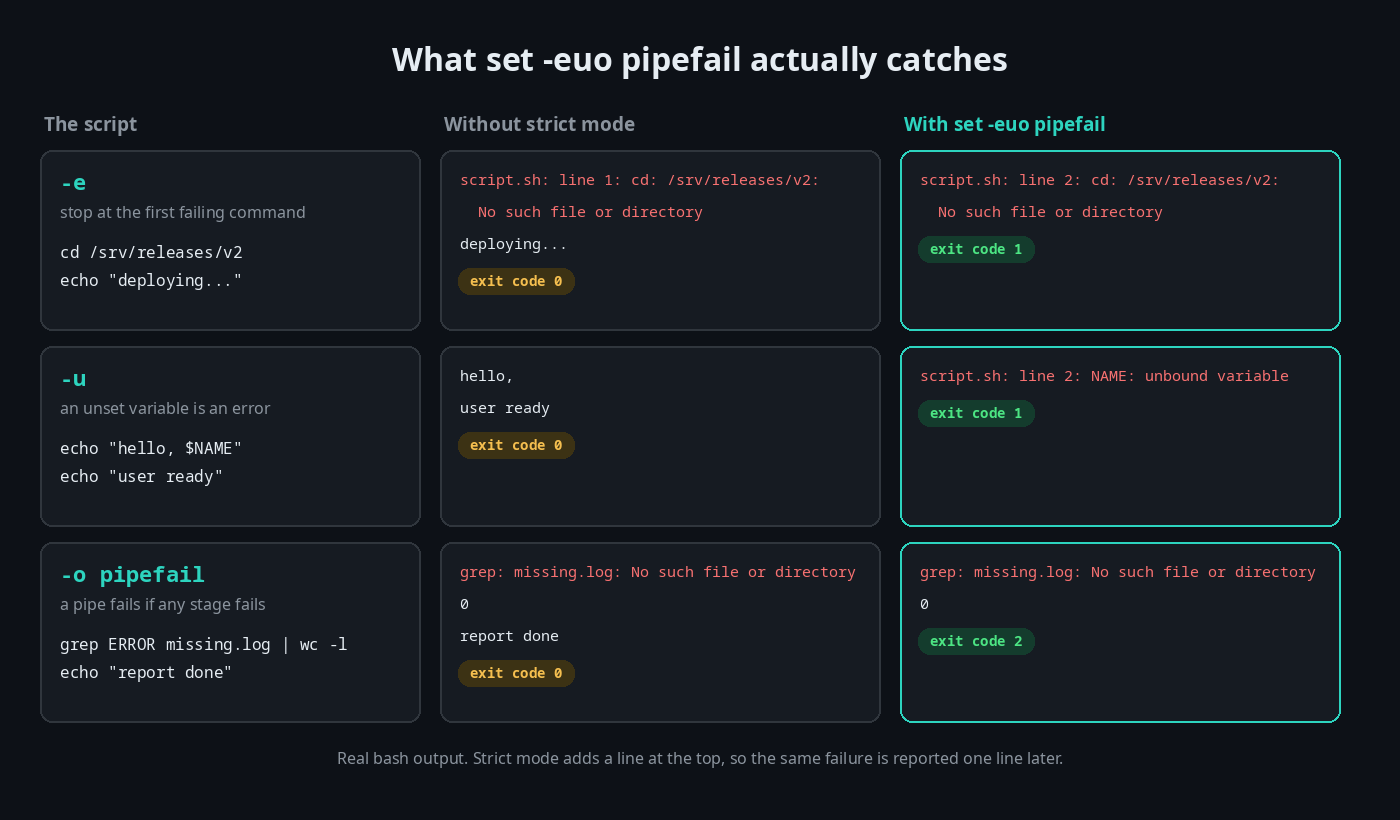
Look at the first example. Without -e, the cd fails and the script carries on to deploy from whatever directory it happened to be in. That's how cleanup scripts end up deleting the wrong thing. In the strict-mode lesson you turn it on, keep it on while handling a variable that might not be set, and then answer a couple of questions on what each flag is for.
The capstone: a script from a brief
The track finishes the way real tasks arrive: a short brief, not a tutorial. You write a script that health-checks a list of services and prints a report. It uses strict mode, an array for the data, a function for the logic, a loop to apply it, and a summary count worked out from the data rather than typed in.
set -euo pipefail

services=(web api worker)

check() {
  echo "service: $1 ok"
}

for svc in "${services[@]}"; do
  check "$svc"
done

echo "${#services[@]} services checked"
None of it is new syntax by then. The point is the shape: strict mode, data near the top, logic in functions, a loop over the data, output derived from the data. Nearly every well-behaved script you'll write on the job looks like this, and being able to walk someone through why is exactly what an interviewer wants to hear.
Built for getting hired
Interview questions in every lesson. Each of the seventeen lessons includes an interview-prep question on its topic, with a worked answer. After the exit codes lesson, for example:
"Why does a CI step fail the pipeline, mechanically?"
Others cover why you quote "$name", how a Bash function "returns" a value, <<EOF versus <<'EOF', how to parse flags, and how to guarantee a script cleans up its temp files even when it's interrupted.
Résumé bullets you've earned. Finishing a lesson adds a ready-to-copy résumé line to your profile, describing what you actually did. The capstone's reads: "Wrote a strict-mode (set -euo pipefail) Bash health-check script from a brief — an array of services, a reusable function, a loop, and a computed summary count."
A certificate when you finish. Complete every lesson in the track and you can claim a certificate of completion, with a public verification page and an Add to LinkedIn button.
How it compares
| Videos & copy-paste | Your own laptop | OpsPath | |
|---|---|---|---|
| Write and run real scripts | ❌ You watch or paste | ✅ | ✅ Every lesson |
| See the exit code every run | ❌ | Only if you check $? | ✅ Every run |
| Covers strict mode, arguments, signals | Rarely | ❌ Bring your own curriculum | ✅ Dedicated lessons |
| Know you've actually done it | ❌ | ❌ | ✅ Every step is checked |
| Interview prep | Sometimes | ❌ | ✅ In every lesson |
Keep writing scripts on your own machine too. That's where the habit sticks. OpsPath gives you the structure, the feedback and the parts that tutorials skip.
Where it fits
Bash sits right after Linux on OpsPath's roadmap to a first platform or infrastructure role:
- Before it: Linux & the Command Line. If
grep, pipes andchmodare still unfamiliar, start there. Bash scripts are those same commands, written down. We wrote about how that track works too. - After it: Git, Python and Cloud (AWS) run on the same sandboxed shell, so everything you've learned carries straight over.
- And then Terraform, where the pipelines that run
planandapplyare, more often than not, a handful of shell steps that need to fail loudly.
Who this is for
- Career changers and graduates heading for a first DevOps, cloud or platform role, where "can you script this?" comes up in the first week.
- Developers who already write code in another language and want to stop treating Bash as copy-paste magic.
- Sysadmins and support engineers who've been running commands by hand and want to turn them into scripts they can hand to someone else.
You don't need any scripting experience to start. Comfort with basic commands helps, and the Linux track covers exactly that.
Start in the next five minutes
Create a free account and open Variables & Output. You'll have a working script in a couple of minutes. The next two lessons, Conditionals & Tests and Loops & Conditionals, are free too. See whether learning by doing clicks for you, then upgrade to Pro when you want the rest of the track.